An Android phone dropping to half a charge before noon is a very common complaint, and in most cases it comes down to avoidable causes: a screen that is too bright, apps refreshing in the background non-stop, careless charging habits or an app that keeps drawing power while you get on with your day. There is no need to switch to airplane mode, settle for a screen so dim you can barely read it or turn off Wi-Fi: a few targeted adjustments can give hours back to your day with barely any difference in everyday use.
It is worth looking at the problem from two angles. The first is daily drain; the second is the long-term health of the battery, because nobody wants to end up replacing it before its time. This guide orders the adjustments into four steps and each one spells out the real menu path, exactly as Engadget documents it.
Prerequisites
- An Android phone with full access to the Settings app.
- A few minutes: the settings in this tutorial take less than five minutes to change.
- Bear in mind that menu names vary by manufacturer: routes such as Battery Protection may appear under a different title on your device.
Steps
1. Tune the display, the biggest drain
The screen is almost always the largest battery drain on the phone, so that is where to start.
- Lower the brightness manually or turn on auto-brightness. Do this in Settings > Display, in the Brightness section, so the display does not burn unnecessary power in dim environments.
- Cut the screen timeout to 30 seconds so the display does not linger when you are not looking at it. The setting lives in Settings > Display > Screen timeout.
- If your phone supports a 120 Hz refresh rate, drop it to 60 Hz for everyday use: in Settings > Display > Motion smoothness pick Standard over Adaptive. Scrolling and gaming will be less smooth, but it is not the end of the world. It is the same principle that works on a laptop with a reduced screen refresh rate in Windows 11.
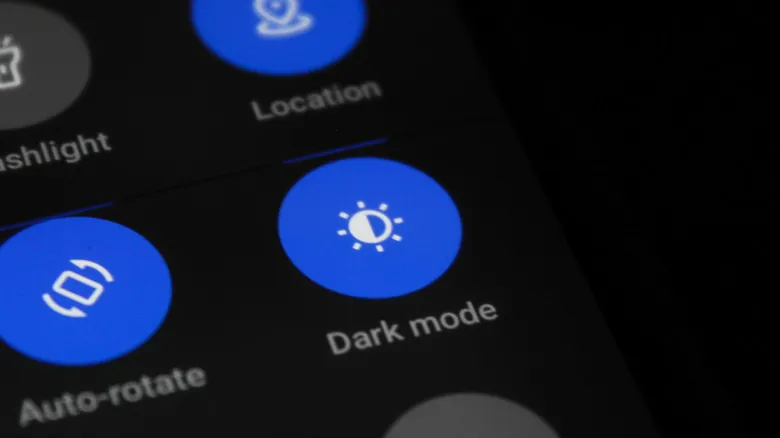
Dark mode is also an option, but results vary: on OLED or AMOLED panels, a Purdue University study puts the display power saving between 39 and 47 percent at full brightness, while at typical indoor brightness levels that saving shrinks to a range of 3 to 9 percent.
2. Turn on Battery Saver and Adaptive Battery
Beyond the display, there are two system tools that do quiet work:
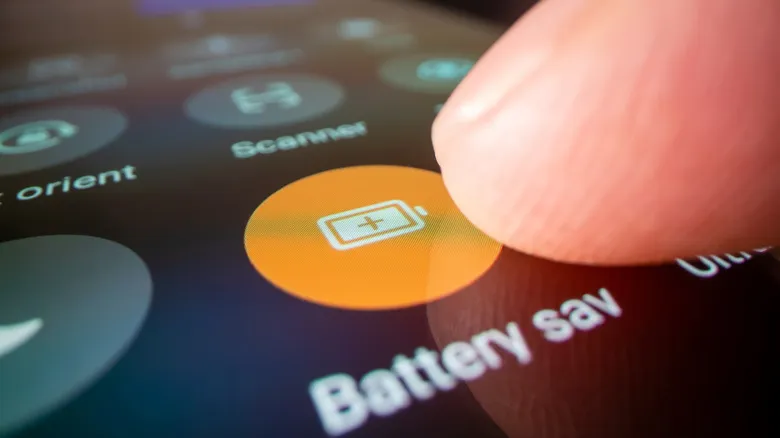
- Battery Saver (also called Power Saving) restricts activity when the charge drops below a threshold you set. It lives in Battery > Battery saver and offers two modes: Standard and Maximum.
- Adaptive Battery goes one step further: it learns which apps you actually open and limits power to the ones you rarely touch. Enable it at Settings > Battery > Background usage limits > Three-dot menu > Adaptive battery.
3. Build smarter charging habits
Charging also decides how long the battery lasts over time. Most users plug their phone in overnight and leave it at 100 percent, and that habit quietly degrades the cell.
- Lithium-ion batteries are healthiest between 20 and 80 percent charge. According to Battery University, keeping the battery in that range keeps voltage lower, which can significantly extend cycle life; consistently charging to 100 percent and leaving the phone plugged in, especially in a warm environment, accelerates capacity loss.
- When you can, charge to about 80 percent and unplug before bed if your phone does not have a built-in charge limit.
- Many current Android phones do ship that limit: Settings > Battery > Battery Protection (the name varies by brand) lets you pick a cap between 80 and 95 percent.
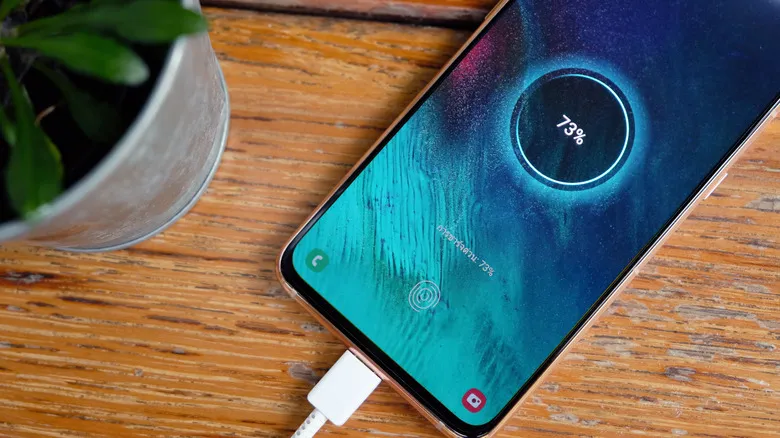
- If you would rather always see the battery at 100 percent, the Basic setting stops charging once it reaches that level and only resumes the top-up when it drops back to 95 percent.
- It pays to run partial charges: topping up to 70 percent is gentler on the cell than running it to empty and filling it back up.
- Fast charging, while convenient, generates more heat than standard charging, and heat is the primary cause of degradation.
For another ecosystem, the same care philosophy is covered in our guide to optimizing and looking after an iPhone battery.
4. Find out what is draining the battery
If the phone keeps losing charge faster than it should despite everything above, it is time to check what is eating it.
- Go to Settings > Battery > Battery usage and look at which apps have consumed the most power over the last 24 hours or longer. Watch for anything that stands out: a navigation app that ran in the background all day, a social network refreshing constantly or a game that never fully closed.
- Tap the app’s name. You will see extra information and, more importantly, a button to set background usage limits, which puts the app into sleep or deep sleep. In sleep, the app runs in the background occasionally and its updates and notifications are delayed; in deep sleep it never runs in the background.
- Rule out malware as well: another possible cause of an abnormal drain is an infected phone, spyware included.

- If none of that changes the situation, run a battery test. On Samsung, open the Members app, go to Support > Phone diagnostics and run the scan; then check the battery status. Other phones use a different path, such as Settings > Battery > Battery Health, but the point is the same.
How to verify it worked
- Go back to Settings > Battery > Battery usage the next day and compare the consumption ranking with the one from before the changes: the apps you limited should appear further down.
- Check that Adaptive Battery is still enabled under Settings > Battery > Background usage limits.
- Run the diagnostics test again: the battery status should read
Normal(orGood, depending on the brand). - In real use, the goal is for the phone to last the day without dropping to half charge at noon.
Warnings and limitations
- Route names vary by manufacturer: Battery Protection, for example, is not called the same on every model, and the diagnostics in the Members app are exclusive to Samsung.
- Dropping from 120 Hz to 60 Hz is noticeable in scrolling and gaming smoothness.
- Dark mode savings depend on brightness: at normal indoor levels they hover around 3–9 percent, far from the figures reached at full brightness.
- Apps in sleep delay notifications and updates, and deep sleep apps never run in the background: if you need an app to stay alive at all times (messaging, navigation), do not restrict it.
- Fast charging raises the temperature, and heat degrades the battery.
- If the diagnostics return anything other than
NormalorGood, the battery may need replacing: no software setting recovers a cell that is already worn.