How to Detect Who Uses Your WiFi: Step-by-Step Guide to Identify Network Intruders
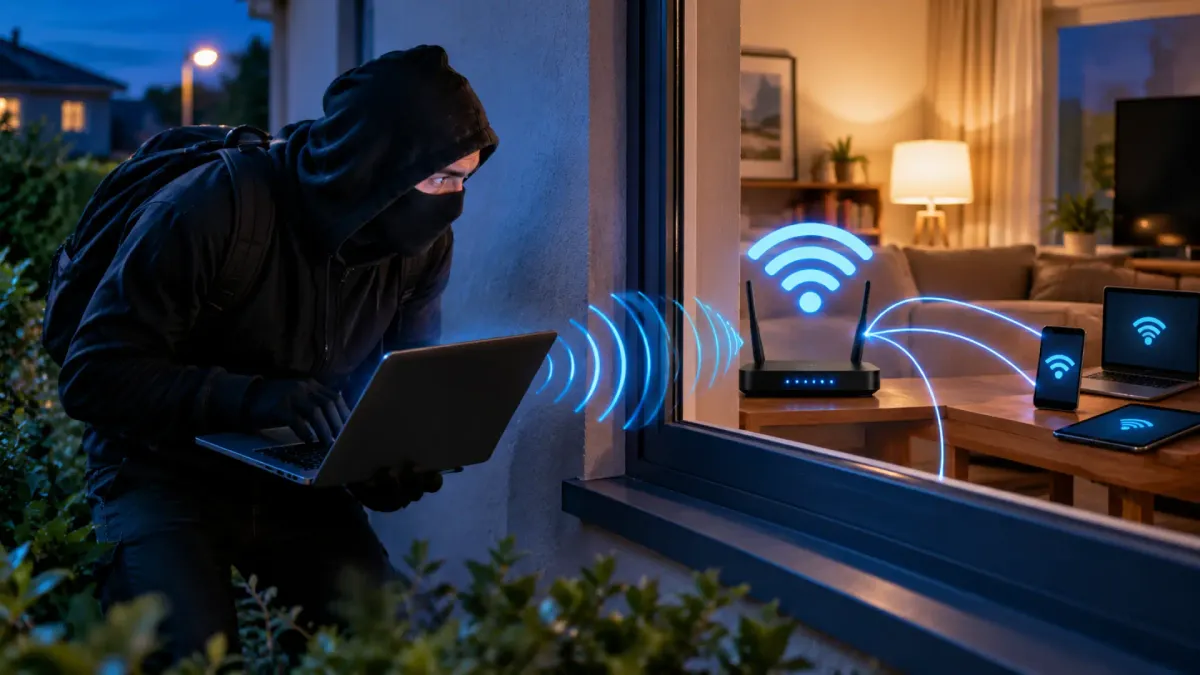
A sudden drop in speed doesn’t always have to be related to what you’re subscribed to or the barriers the signal encounters: sometimes it means someone has slipped into your WiFi network. This happens if you left the network without security configured, if your router has a known vulnerability, or if someone cracked the password. This guide explains how to discover which devices are connected to your network, from the most basic options to the tools used in audits, and is aimed at anyone who suspects intruders and wants to verify it without overcomplicating things.
Beyond speed, having an intruder on the network affects the security of all your devices: someone connected to the same network can intercept data packets easily. And if a legal act is committed from your IP address, even if you don’t know about it, the legal consequences may fall on you as the identified user.
Prerequisites
- Basic knowledge of IP addresses, MAC addresses and general networking terms.
- Access to your router’s admin panel (address and login credentials).
How to See Devices Connected to Your WiFi from the Router
This is the simplest technique and the one you should use first: the router itself collects connected devices.
- Access the admin panel. Enter
192.168.1.1or192.168.0.1in your browser. - Find the DHCP leases table. Navigate through the router’s menus — generally under the «Advanced» tab — until you find something that says «DHCP leases table». It will show all private IP addresses dynamically assigned to each connected device, along with details like time and host name.
- Locate the ARP table. It usually appears as «ARP table» and maps concretely the IP address and physical MAC address of each device.
- Check the WiFi clients table. This also appears as a table and shows the MAC address of each client along with signal strength.
How to Identify Each Device with Fing
If the router panel doesn’t give you enough detail, the next option is the Fing app, available on Android, iOS, Windows and macOS.
- Install Fing from your system’s app store (on Android, from Google Play).
- Review the list of connected devices to your WiFi network with their corresponding MAC address. It also works when you’re traveling and suspect a camera connected to the internet.
- Let it analyze protocols NetBIOS, UPnP and mDNS, and determine which ports are open to identify the brand and model of the connected terminal: in practice, you’ll know if there’s a smart TV, a console like a PlayStation 5 or a smart speaker from any brand.
How to Scan Your Network on Windows with Wireless Network Watcher
For Windows, on any version, the most suitable option if you don’t want to complicate things is Wireless Network Watcher by NirSoft: it’s open source, very lightweight and designed specifically for that operating system.
- Download it from NirSoft’s official page.
- Run it. It makes ARP requests across the entire assigned subnet range.
- Read the results. It collects the IP address, MAC address, network card manufacturer, connected computer name and a detection count.
- Automate alerts so the tool warns you when an unregistered MAC address appears.
How to Scan Your Entire Subnet with Nmap and Zenmap
A more advanced step is Nmap, the go-to tool in this field.
- Download Nmap from its official page, according to your operating system.
- Find the Zenmap executable inside the Nmap folder: it’s a very intuitive graphical interface.
- Determine your IP address on Windows or any other system.
- Set the target. Leave the first three blocks of your IP address intact and replace the last one with
0/24, to instruct the tool to search across your entire subnet and not just from the computer you’re searching from. - Read the scan. Many devices will appear with all their information: open ports, latency and device models, whether they’re Amazon, TP-Link, etc.
How to Inspect Traffic in Real Time with Wireshark
The second advanced tool is Wireshark, which captures all traffic in real time and requires learning how to use filters.
- Download it from its official page, selecting your operating system.
- Open it after installation completes and look for the main network, the one that appears at the top.
- Apply a filter with the command
ip.src == tudireccionip. You’ll then know where all packets of your main WiFi network are headed, with the specific IP address of the server — applications, web pages, etc. — as well as the port they’re opening.
How to Verify It Worked
- Router panel: the DHCP, ARP and WiFi clients tables list private IP addresses, MAC addresses, host names and signal strength of connected devices.
- Fing and Wireless Network Watcher: a device appears for each computer present on the network, with its IP, its MAC and —depending on the tool— the manufacturer or model. Check that each row corresponds to a device you recognize.
- Nmap and Zenmap: the scan returns the list of devices in your subnet with their open ports and model; if a device appears that you don’t have, there’s an intruder.
- Wireshark: with the filter applied, packets leaving your network show the destination server IP and port.
Warnings and Limitations
- In many cases the router panel doesn’t show specific names but generic host names, so it’s hard to identify a particular device when you already have many connected —speakers, lights, etc.—.
- Over time, Fing’s free version becomes quite limited.
- Nmap and Wireshark can be more complicated without advanced knowledge of network management, and the information captured by Wireshark is overwhelming at first if you don’t know how to make searches.
- Detecting an intruder doesn’t reduce risk on its own: whoever is connected to your network can still intercept data packets, and a legal act committed from your IP address may end up attributed to you.
If you want to go beyond detection and strengthen the setup, our guide on how to improve your router’s security in 10 minutes is the next logical step.