To identify which apps are draining a Windows laptop’s battery, it helps to separate two situations: consumption while you work and activity when the computer should be asleep. Windows 11 shows the first in Settings; SleepStudy lets you investigate the second on compatible computers. This guide adapts the procedure published by Mark Hachman in PCWorld on October 29, without installing additional utilities or promising a specific battery-life improvement.
Requirements and limitations before starting
The Settings path applies to Windows 11, as shown in the original screenshot. It should not be transferred literally to other versions. For the SleepStudy section, you need to open Command Prompt as administrator and have a computer with Modern Standby, the sleep model the tool is designed for.
Microsoft’s SleepStudy documentation places its availability from Windows 8.1 onward on computers implementing that model. Having a later Windows version does not by itself guarantee compatibility. If you only want to identify app consumption during use, start with Settings: you do not need to generate the report to consult that list.
1. Open Windows 11 battery usage
In Settings, go to System → Power & battery, as named in the original English interface. Expand Battery usage, located toward the bottom.
The chart lets you view the last 24 hours or the last seven days and relate the history to screen time. Before looking for culprits, keep the selected interval in mind: consumption on a day with many tasks does not necessarily describe the laptop’s usual behavior.
2. Review which apps are using the battery
Below the chart, consult the battery usage by app section. Compare the Overall usage and Background views identified by PCWorld. The first helps locate the apps with the highest consumption; the second lets you look for activity that does not correspond to visible use of a window.
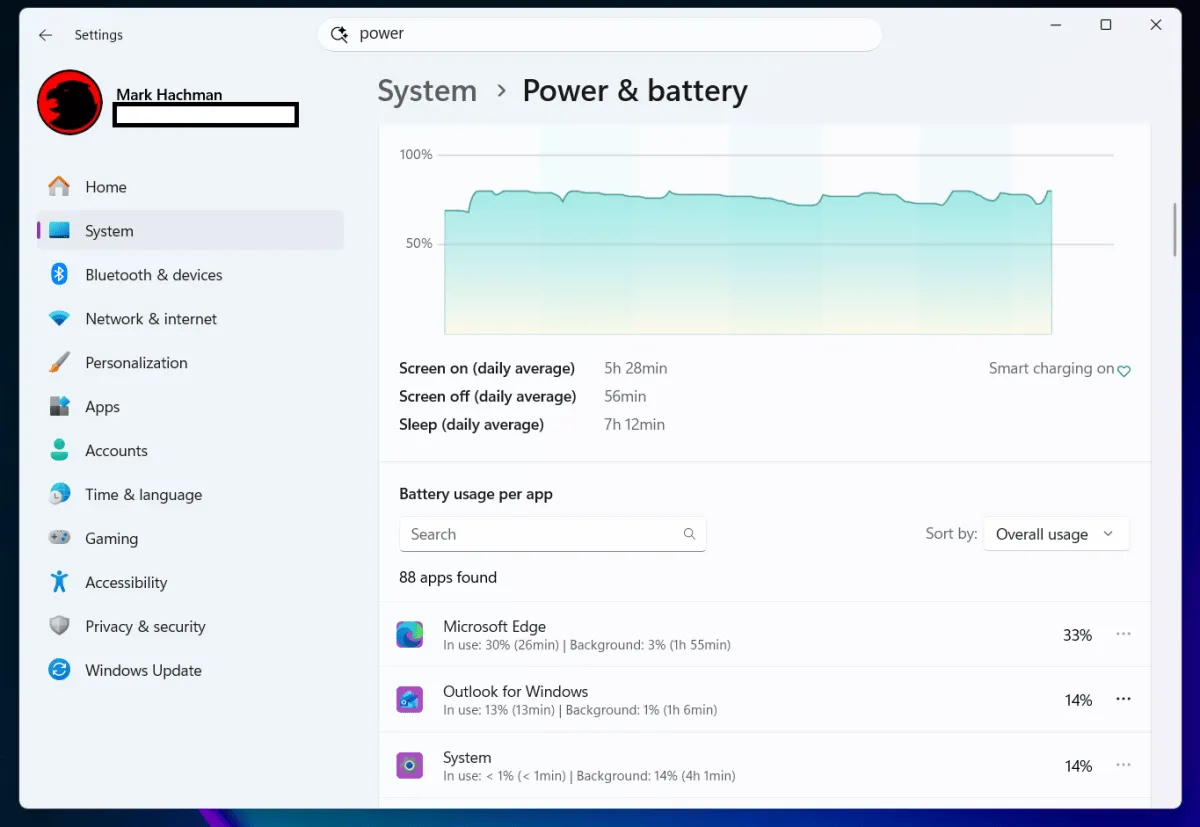
Screenshot: Mark Hachman / Foundry, via PCWorld.
A high position does not by itself prove a fault. A browser with many tabs may consume more because it has been used more. The aim is to find an app whose consumption does not match what you need from it, particularly if you have recently installed a utility.
3. Close an unnecessary app when you need battery life
If you identify an app with significant consumption that you do not need at that moment, close it. The original’s example is Outlook while traveling: Hachman suggests temporarily going without the laptop’s email client and replying from a phone.
There is no need to turn that decision into an uninstallation or disable system components. The aim of this step is to reduce unnecessary work based on the information observed, not indiscriminately close everything in the list.
4. Generate a SleepStudy report to investigate sleep
If the problem occurs while the laptop should be asleep, open Command Prompt as administrator. Enter the original’s command with its output option to save the report to an explicit location:
powercfg /sleepstudy /output C:\Users\Public\sleepstudy.htmlWait for it to finish; this may take several seconds. Then open C:\Users\Public\sleepstudy.html. This variant avoids relying on the console’s working folder: Microsoft explains that without a specified output, the report is saved in the current directory.
5. Examine periods of activity in the report
The document appears as System Power Report. Find the periods when you expected sleep and open their details using the report’s links. PCWorld highlights the use of colors for guidance: red areas deserve attention because of their high activity, but they are not a diagnosis in themselves.
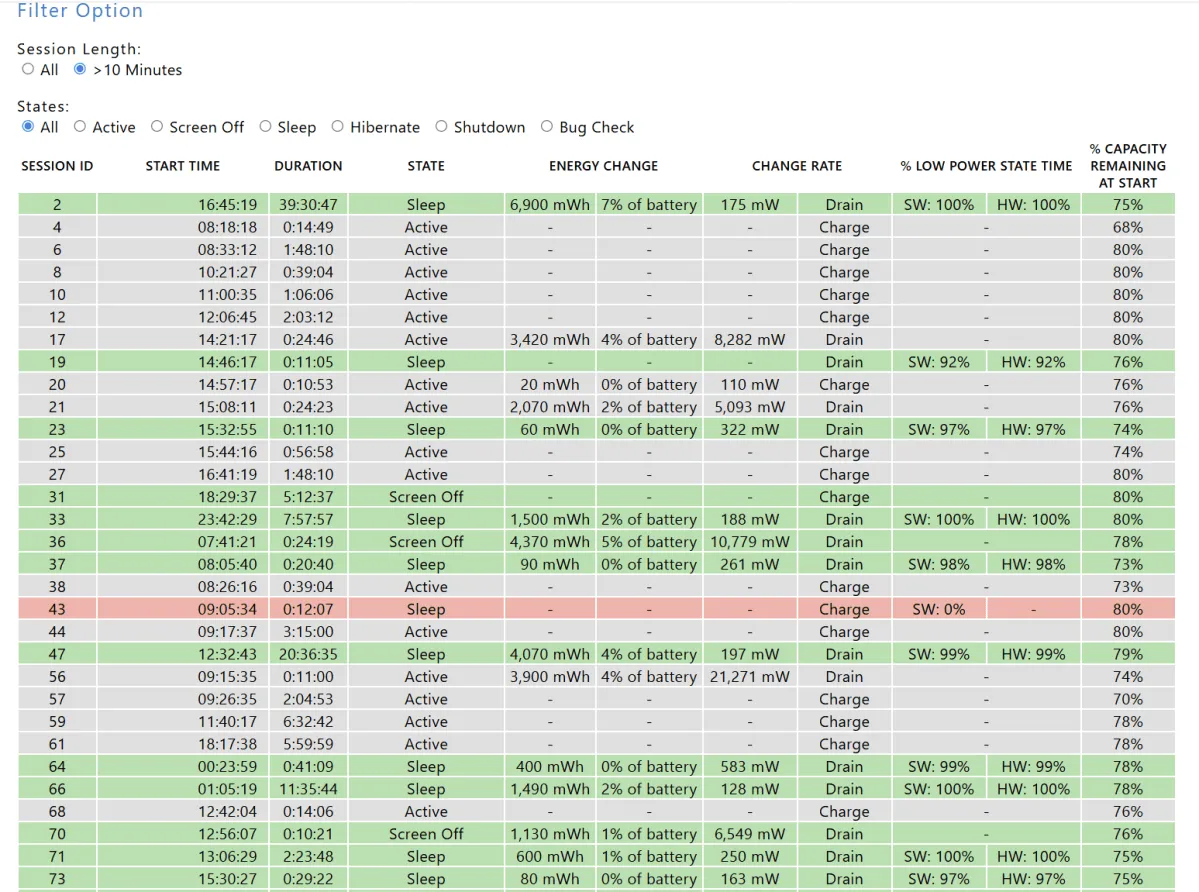
The details may show active components or devices, not just conventional apps. That is why a sleep problem is not necessarily resolved by closing the program at the top of the Settings list.
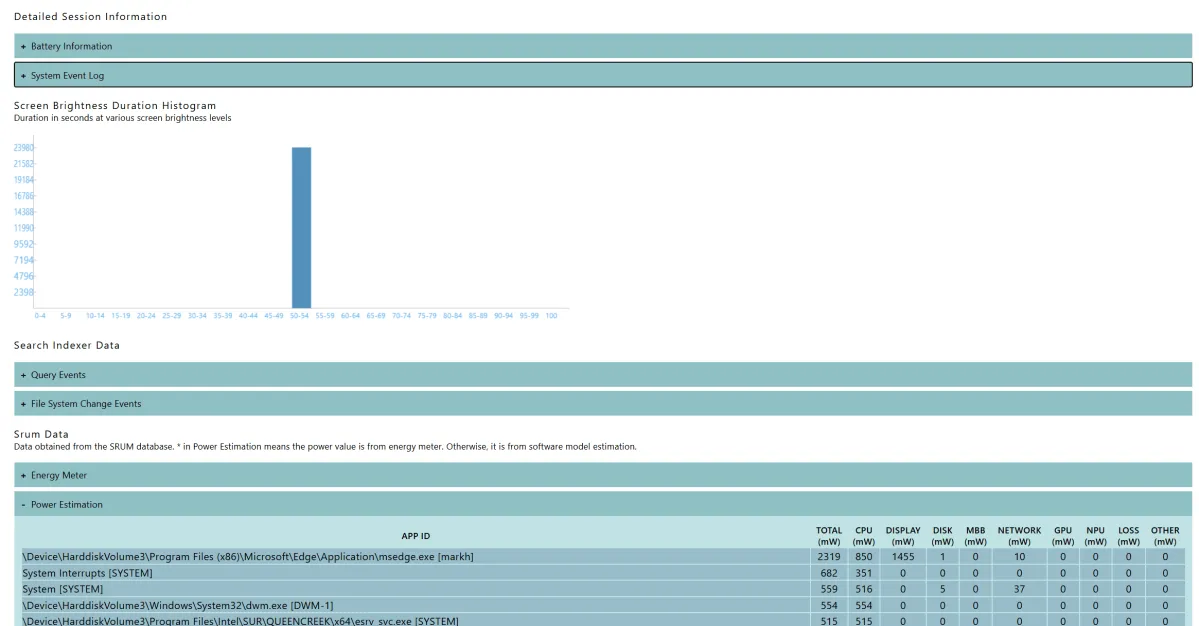
SleepStudy screenshots: Mark Hachman / Foundry, via PCWorld.
How to verify the diagnosis and what it does not prove
Check that you have obtained two different results: an app-consumption list for the chosen interval and, if the computer is compatible, a SleepStudy HTML file with sessions you can inspect. If you detect activity during a period of supposed sleep, you have a concrete lead to investigate; generating the report does not automatically fix its cause.
Microsoft says the default report covers the last three days. This should not be confused with the seven-day Settings view or assumed to reproduce the interval in PCWorld’s personal example. It also distinguishes sessions on mains power from those on battery: observing activity while the computer is plugged in is not the same as measuring battery discharge.
This check does not guarantee doubling battery life either: that PCWorld claim refers to another guide, not a test of these steps. If consumption comes from the display rather than an unexpected app, you can consult our explanation of refresh rate and battery life in Windows 11, which covers a different measure.
Cover image: Mark Hachman / Foundry, via PCWorld.