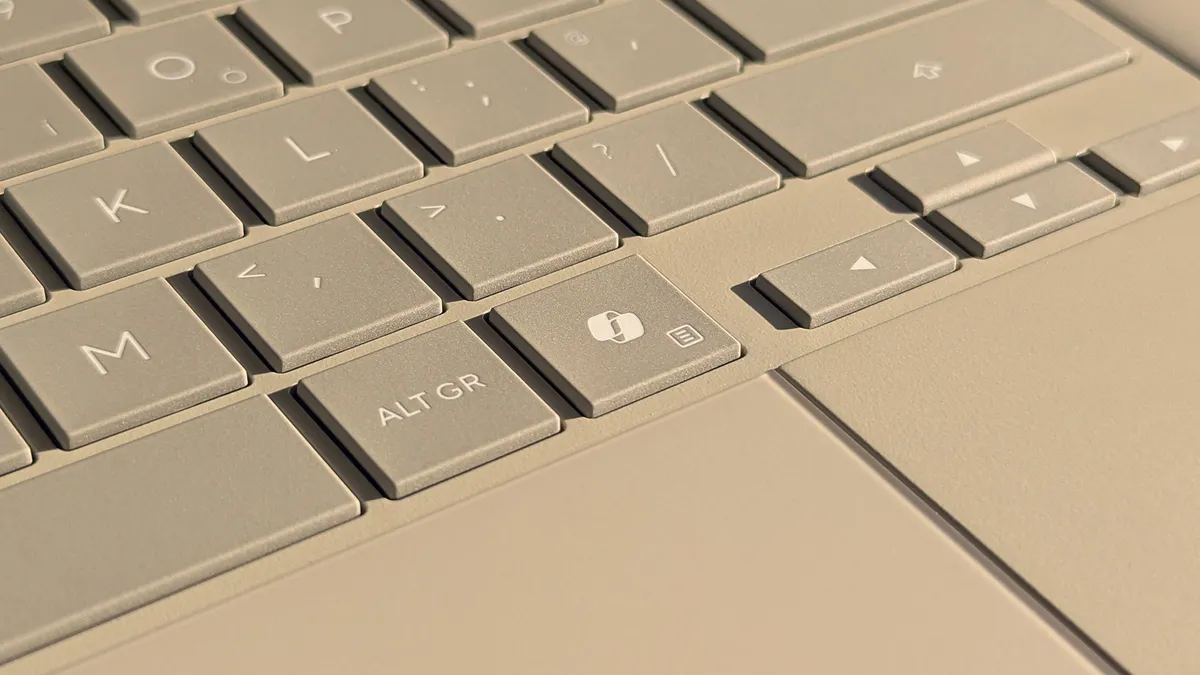
Microsoft has decided to drop the Copilot+ PC brand. The new 12-inch Surface Pro and 13-inch Surface Laptop are no longer marketed under that name, even though they still meet the technical requirements to carry it. The outcome leaves more than one user in an awkward position: many people bought a Copilot+ PC because it was the only way to get certain laptop models, and now they are left with a Copilot key they never use.
The good news is that remapping the Copilot key in Windows 11 is possible. Microsoft lets you change what that key does from the system settings, though with limited options; if you want finer control, PowerToys covers the rest.
Prerequisites
- A machine running an up-to-date copy of Windows 11. The option to remap the Copilot key from the settings arrived on the system this year, so it is worth installing the latest updates before you start.
- If you take the advanced route, PowerToys installed (it is free).
Step 1: remap the key from the Windows 11 settings
This is the simplest option, but also the most limited: it only allows three destinations.
- Open the Settings app.
- Go to Bluetooth & devices.
- Select Keyboard.
- Open the dropdown menu next to Customize Copilot key on keyboard.
- Choose one of the three available options: Search, Copilot or Open an app.
Step 2: remap the key with PowerToys
If you want the key to do anything other than open Search, Copilot or an app, you need a separate tool. PowerToys includes a Keyboard Manager that solves the problem.
One key detail: Windows 11 treats the Copilot key as a shortcut, not as a standalone key, so you have to use the option to remap a shortcut.
- Install PowerToys.
- Open PowerToys.
- Open the Keyboard Manager tool.
- Check that Keyboard Manager is enabled.
- Select Remap a shortcut.
- Click Add shortcut remapping.
- Set the shortcut to Windows + Shift + Ctrl + F23.
- Assign whatever action you want, for example Ctrl (Right).
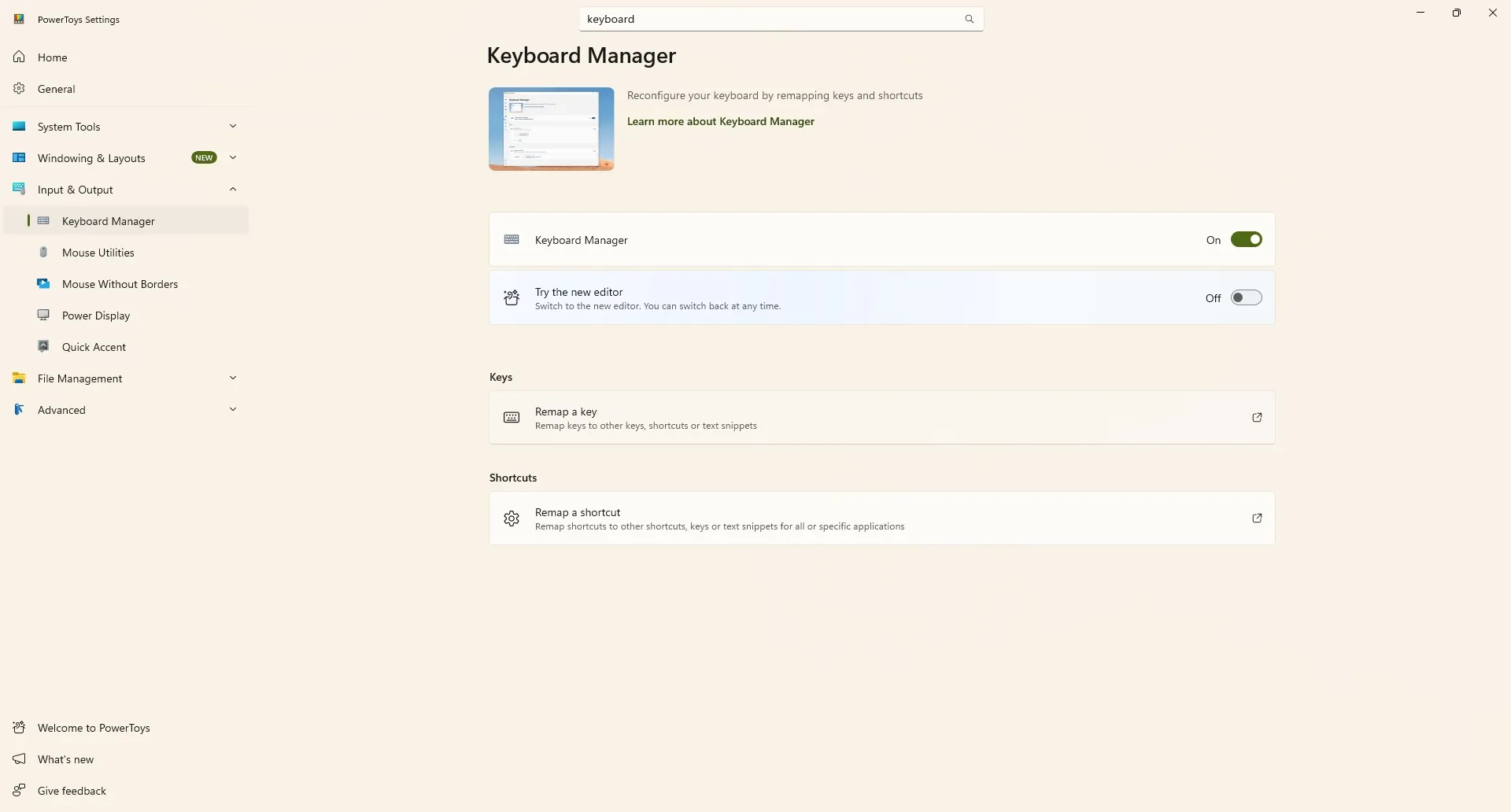
Since few keyboards have an F23 key, the process is easier with the classic Keyboard Manager editor: just turn off Try the new editor. The discovery that the Copilot key is actually a shortcut built on F23 comes from our colleagues at Tom’s Hardware.
Step 3 (optional): cover the key’s logo
Even if you remap the key, the Copilot logo will still be printed on the keyboard. If it bothers you that a key does not match what it types, you can cover it with a sticker.
How hard that is depends on the colour of your keyboard. Finding stickers in white or black is easy, but if you have a Surface with a grey keyboard or a colourful Type Cover, matching the exact shade can be tricky. In those cases it is worth looking on eBay or Etsy, where custom options exist, although since these are not standardised products there is no specific set to recommend.
How to verify it worked
Press the Copilot key and check that it runs the action you chose: opening Search, launching Copilot, starting the selected app or sending the shortcut you defined in PowerToys. If the key still opens Copilot by default, check that the change was saved and that the PowerToys Keyboard Manager stays enabled.
Warnings and limitations
- The Windows 11 settings route only offers three destinations (Search, Copilot or an app); anything else has to go through PowerToys.
- Customising from the settings requires an up-to-date machine; on older versions the option does not appear.
- The PowerToys remap is tied to that machine’s configuration: if you uninstall the tool or switch devices, the key returns to its original behaviour.
- Not every keyboard with a Copilot key belongs to a Copilot+ PC: conventional machines and keyboards also include it.
- Covering the logo is not a universal fix: on keyboards with unusual colours a matching sticker may simply not exist.
If you tweak other Windows 11 customisation settings, our Spanish-language guide to Windows 11’s automatic dark mode explains how to control the system theme without relying on third-party tools.