If you use a HomePod to listen to your Mac and have to select it again over AirPlay, you can make it the default audio output with a persistent connection. This guide is for people who want to send the computer’s sound to the speaker, not just a song, and have compatible models and software versions.
The procedure follows Ed Hardy’s guide in Cult of Mac, published on October 29. Apple’s official HomePod software notes, dated October 28, also describe this persistent AirPlay connection. The difference from temporary audio streaming is that you do not have to keep repeating the selection.
Cover photograph: shyam mishra / Pexels, used by Cult of Mac. This is an illustrative image; compatibility depends on the models listed below.
Requirements for using HomePod with a Mac
Before looking for the speaker in settings, check the requirements listed in the original tutorial:
- Second-generation HomePod or HomePod mini 2. Having just any speaker in the HomePod family is not enough.
- HomePod software 27.2 or later installed on the speaker.
- macOS 27.2 on the computer, the version specified by the guide for this feature.
- A Mac supporting Wi-Fi 6E or later. Being able to install a recent macOS version does not by itself guarantee that the computer meets this hardware requirement.
If you use a compatible stereo pair, the procedure lets you select it as the output instead of choosing an individual speaker. You do not need a pair to follow the steps: the original covers both possibilities. This guide assumes devices that are ready and does not add updating or stereo-pair creation instructions that the article does not explain.
1. Open System Settings
On the Mac, click the Apple menu, identified by the apple symbol in the upper-left corner of the screen. Select System Settings, the name used in the original.
The change is made in the computer’s settings. It is not about choosing a destination inside a music app: the aim is to define the Mac’s audio output.
2. Go to Sound and find Output
In the settings sidebar, select Sound, as named in the original guide. Then open the Output tab or section.
That area brings together the devices available for playing audio. This is the point in the process where you should find the HomePod; there is no additional persistence switch among the steps documented by Cult of Mac.
3. Select your HomePod as the default output
Click your HomePod’s name in the list of output devices. If you already have a compatible stereo pair, you can select that pair instead.
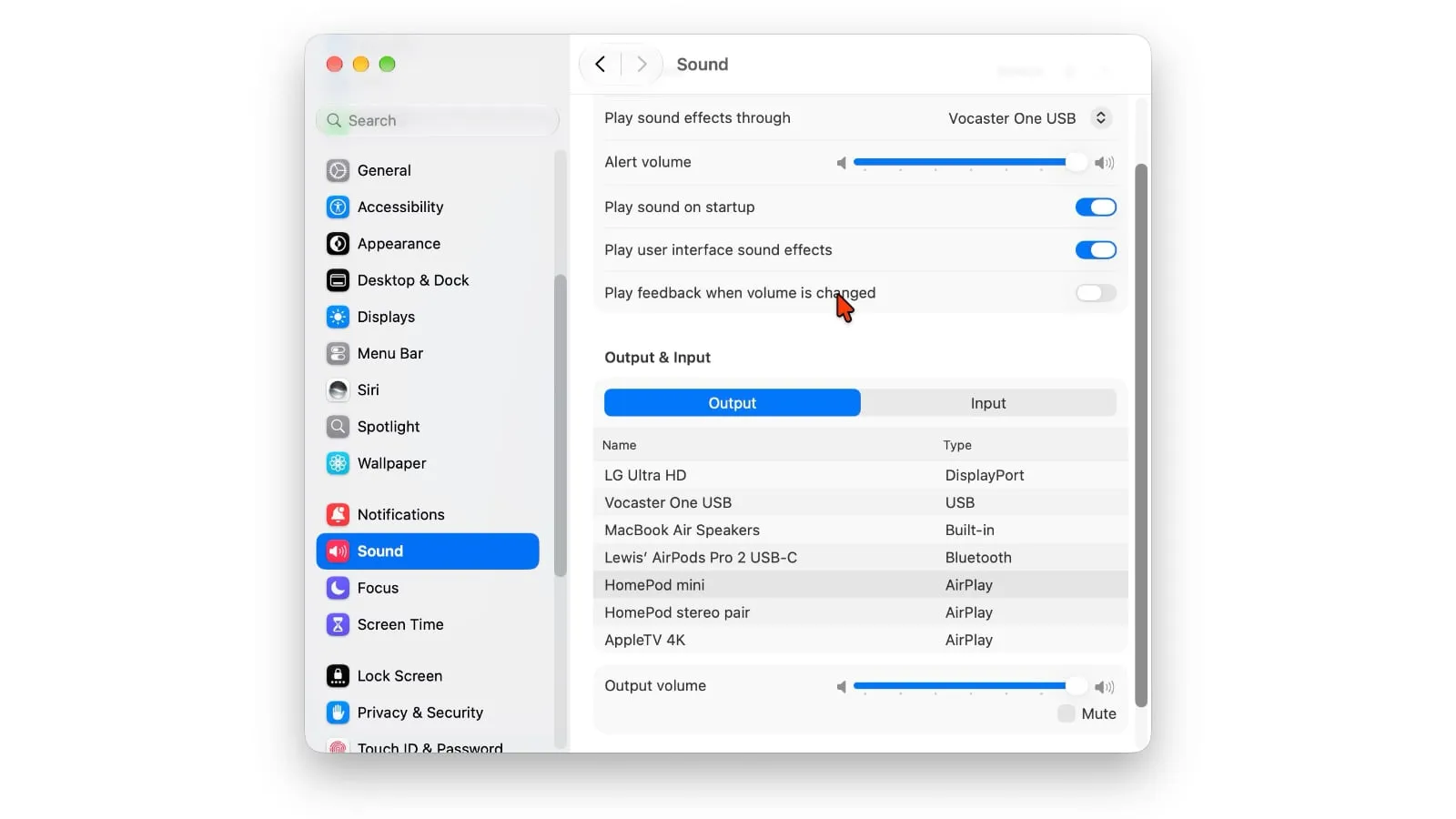
Screenshot: Cult of Mac. The original interface is in English.
This selection is the decisive step. According to the tutorial, with compatible devices the connection becomes persistent, unlike the temporary link previously obtained by streaming audio over AirPlay.
How to check that it worked and understand its limits
The expected result is hearing the Mac’s audio through the HomePod, including system sounds, video calls and other content, without having to reconnect it repeatedly. That is the relevant check: hearing music once does not by itself distinguish temporary streaming from the persistent behavior described by the source.
If the result differs, first compare your combination of computer, speaker and software against the requirements above. The original does not provide a troubleshooting sequence for a HomePod missing from the list; that is why we do not add restarts, network changes or alternative settings as if they were documented.
This feature should not be confused with the capabilities of other Apple home devices either: our coverage of the HomePod mini 2 and Apple TV 4K discusses the products, whereas the aim here is to configure the Mac’s output. Apple’s notes support persistence, but do not detail the hardware requirements on that page: those come from Cult of Mac’s guide, not our own testing.