SILENT HILL Townfall arrives on PC as an entry built on Unreal Engine 5 with Nanite, Lumen and Virtual Shadow Maps, and it makes good use of the fog and volumetric lighting of its setting. It also arrives with some of the engine’s typical problems: background shader compilation, traversal stutters and a sparser graphics menu than expected. This guide explains, step by step, how to tune SILENT HILL Townfall on PC for a smoother experience without noticeably compromising the image.
What this guide solves and who it is for
It is aimed at anyone who already has the game installed on Windows and is noticing stutters, FPS drops, or simply wants to know which menu option actually matters. It covers the official requirements, picks the right temporal upscaling, applies a graphics profile optimized through real testing, and finishes with extra tweaks outside the menu. Every value here comes from Wccftech’s original analysis; there are no invented presets and no untested shortcuts.
Prerequisites
The official specifications published on the Steam store page call for Windows 11 and DirectX 12 in both cases, with 75 GB of storage:
| Component | Minimum | Recommended |
|---|---|---|
| CPU | AMD Ryzen 5 3600 / Intel Core i7-8700K | AMD Ryzen 7 5700X / Intel Core i7-9700K |
| GPU | NVIDIA GeForce RTX 2060 Super / AMD Radeon RX 6600 | NVIDIA GeForce RTX 3080 / AMD Radeon RX 7800 XT |
| RAM | 16 GB | 32 GB |
| OS | Windows 11 x64 | Windows 11 x64 |
| DirectX | DirectX 12 | DirectX 12 |
| Storage | 75 GB | 75 GB |
| Target | 1080p, Low, 30 FPS | 4K, High, 30 FPS with DLSS/FSR/TSR Balanced |
Keep in mind that those targets are conservative: the minimum specs aim at 1080p and 30 FPS on Low, and the recommended specs at 4K and 30 FPS on High with upscaling set to Balanced. If you have an Intel Arc GPU, it is also worth checking the Intel Arc 101.9030 drivers with Game Ready support for this title, released ahead of launch.
How the CPU behaves before you touch anything
It is worth knowing the starting point. In a geometry-heavy scene (the town square), with everything maxed out, output at 1920x1080 and DLSS Super Resolution in Ultra Performance mode, a Core i7-14700K averaged 158.7 FPS, but the 1% lows sat at 91.5 FPS and the 0.1% lows at 57.2 FPS. That large gap between the average and the percentiles translates into uneven frame pacing.
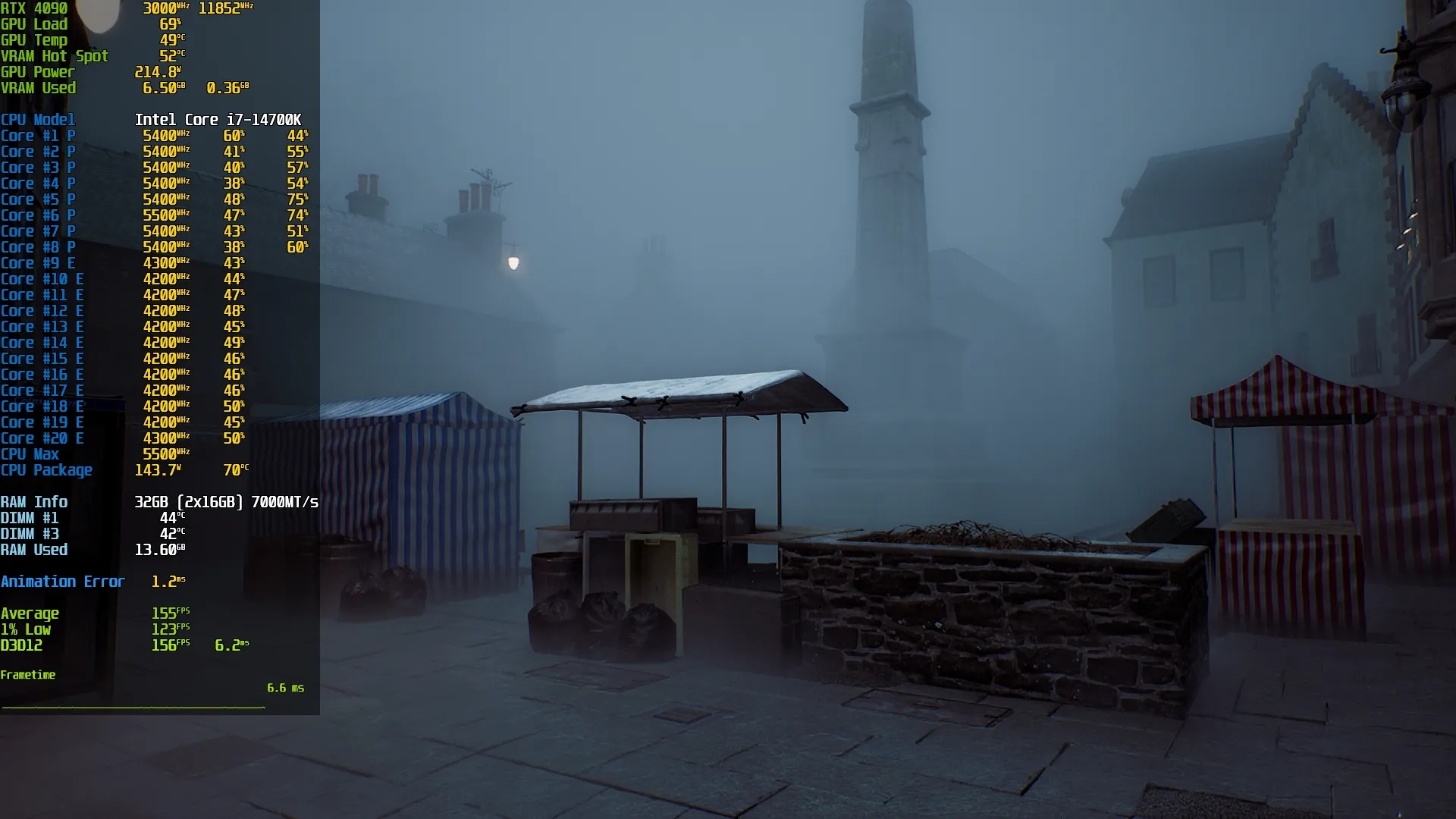
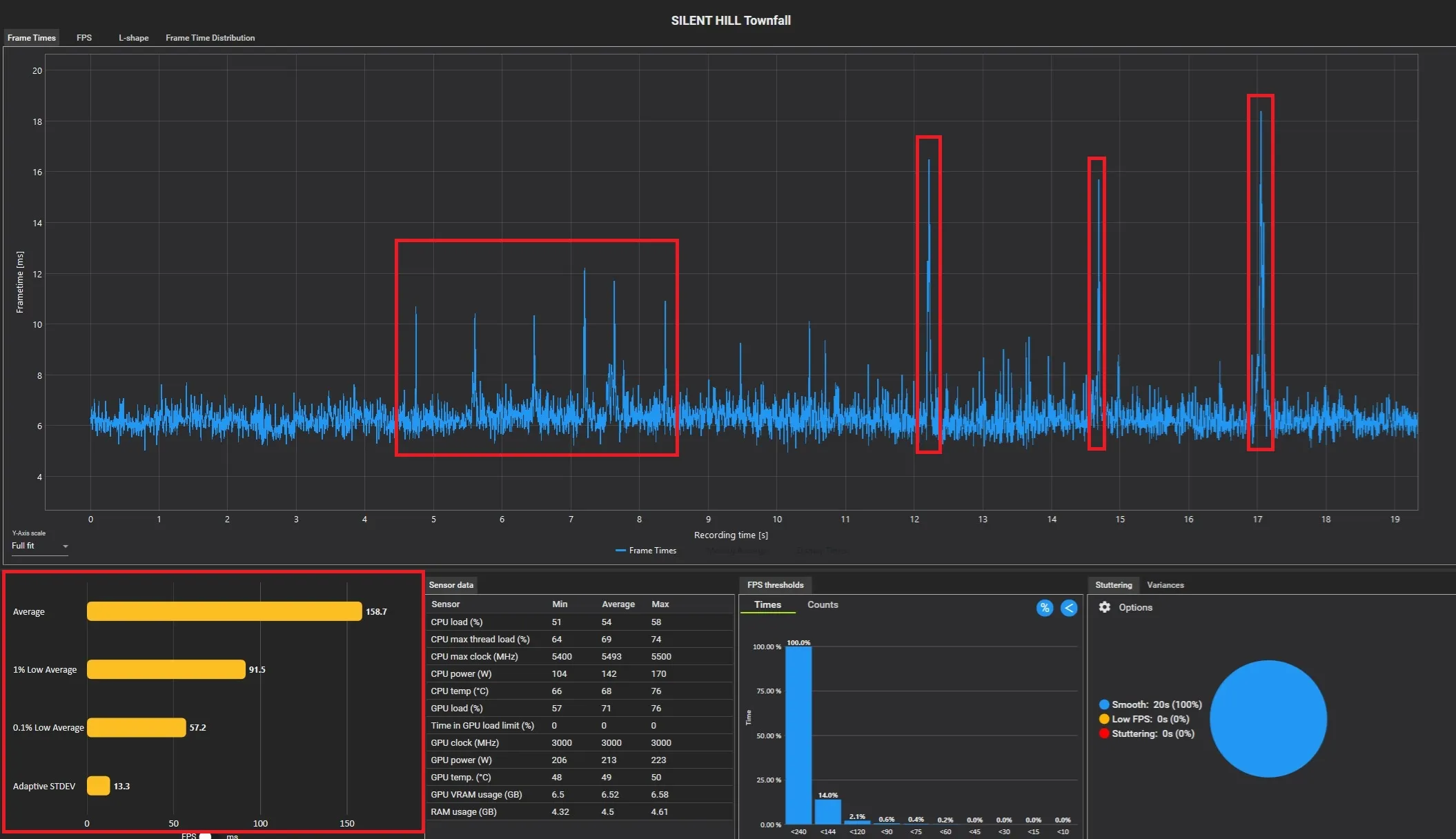
CPU load was also unusually high for a game of this scope, and asynchronous shader compilation pushes it even further during gameplay. If your processor has few cores, expect the worst case: follow every step of this guide without skipping any.
Steps
1. Pick the right temporal upscaling
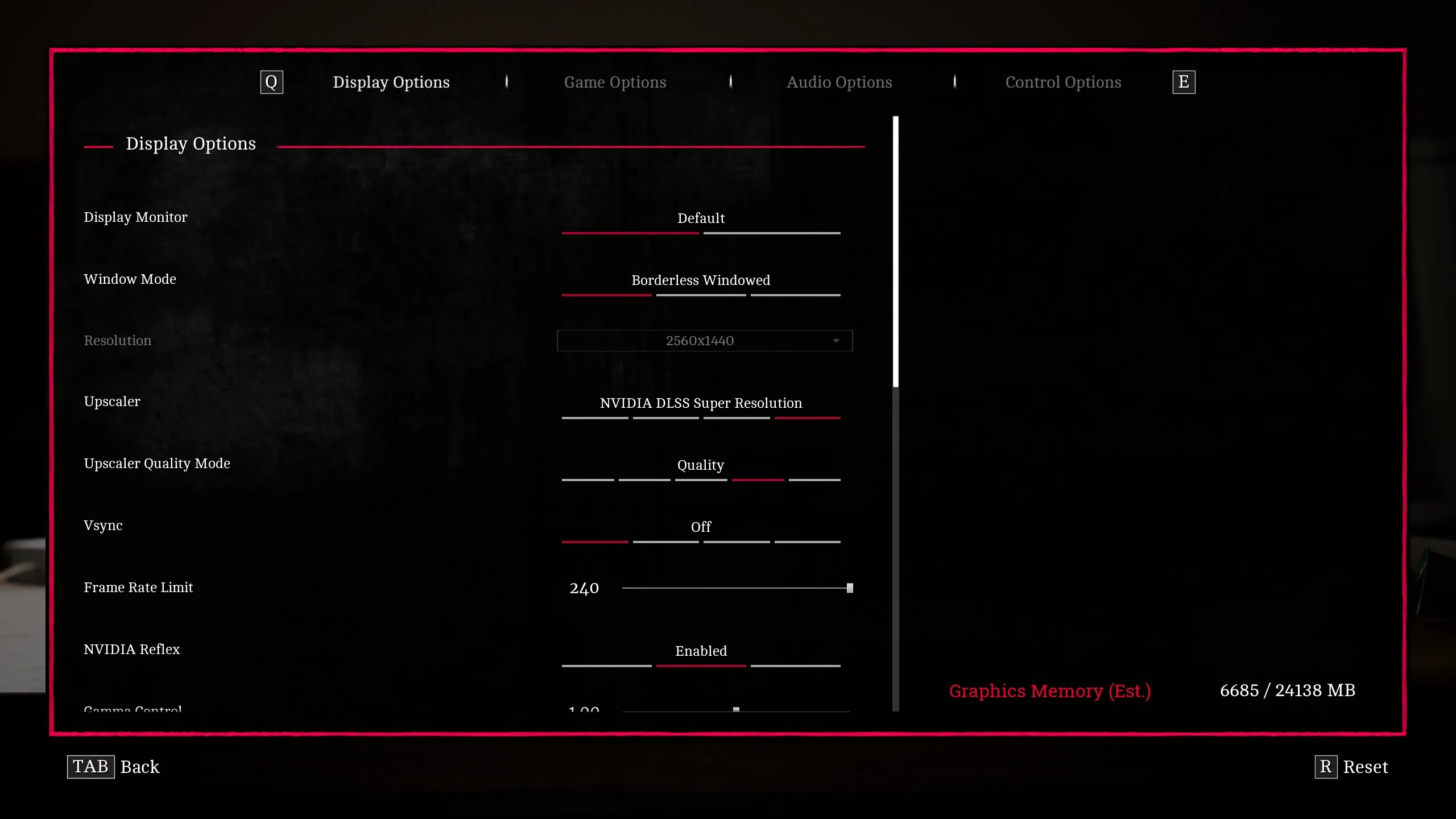
SILENT HILL Townfall supports NVIDIA DLSS Super Resolution, AMD FSR Upscaling, the native TSR of Unreal Engine 5 and an older-generation TAAU option that is lighter but worse looking. Intel XeSS Super Resolution and native frame generation are absent.
- On a GeForce RTX GPU, select DLSS Super Resolution: it is the best reconstruction quality available in the game.
- On an AMD Radeon, use FSR Upscaling. With an RX 7000 or RX 9000 you can also take advantage of FSR 4.1 support, which the AMD Adrenalin layer recognizes in the game’s FSR integration.
- On other hardware, fall back to TSR as the universal option. Note: the game does not expose TSR quality levels, so it is less flexible than we would like.
- Start in Quality mode and apply the graphics profile from step 2 first. Only lower the internal resolution if the GPU still cannot reach the target.
Temporal upscaling is managed separately from the rest of the tuning: do not compensate for it by lowering graphics options that are already well adjusted.
2. Apply the optimized graphics profile
The menu is sparse: there are only seven principal graphics quality settings, with no useful descriptions, no preview images, no indication of whether each option affects the CPU, the GPU or VRAM, and no built-in performance metrics. There are no Low/Medium/High/Ultra presets either: “maxed out” simply means every individual setting at its highest value.
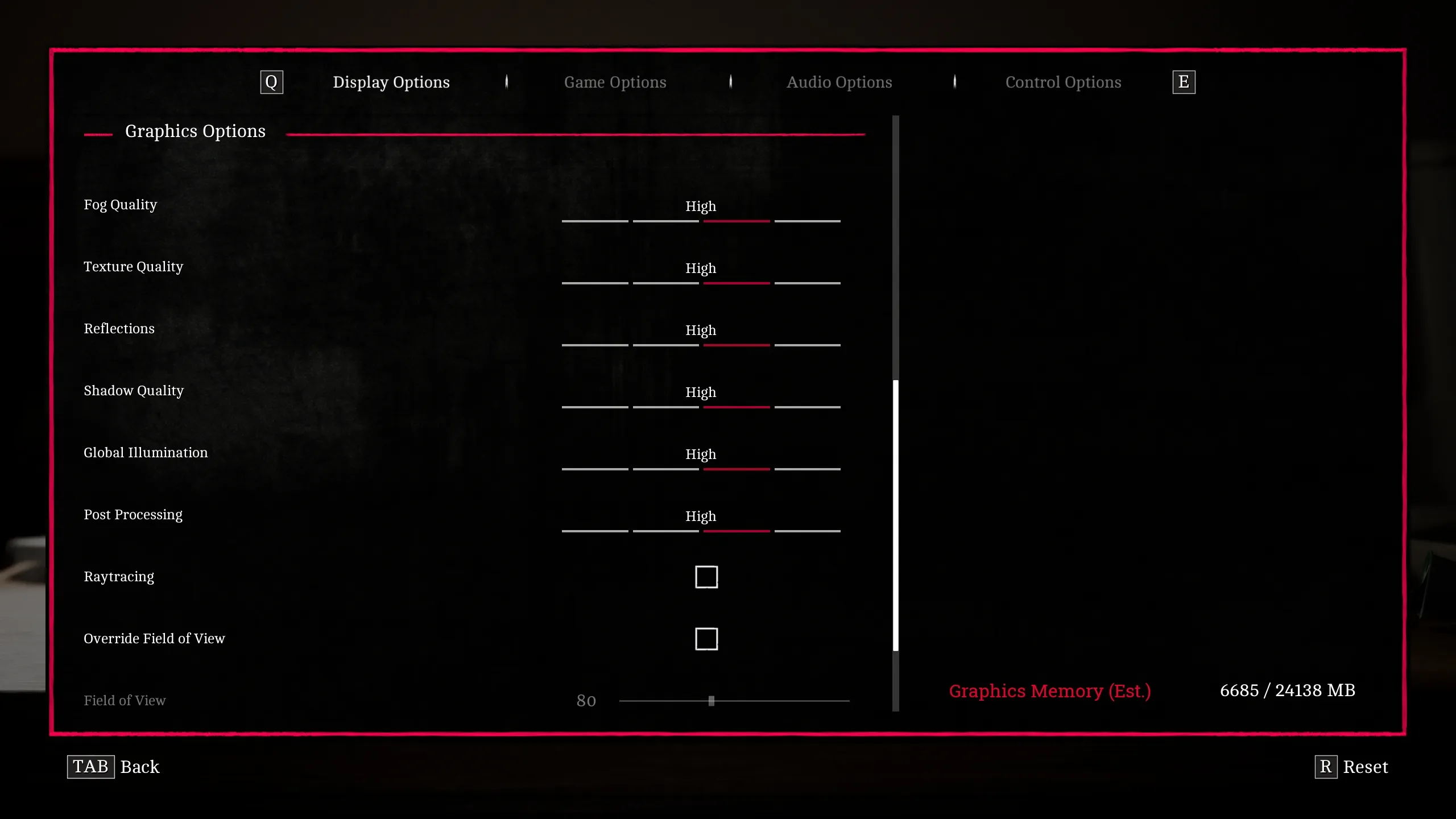
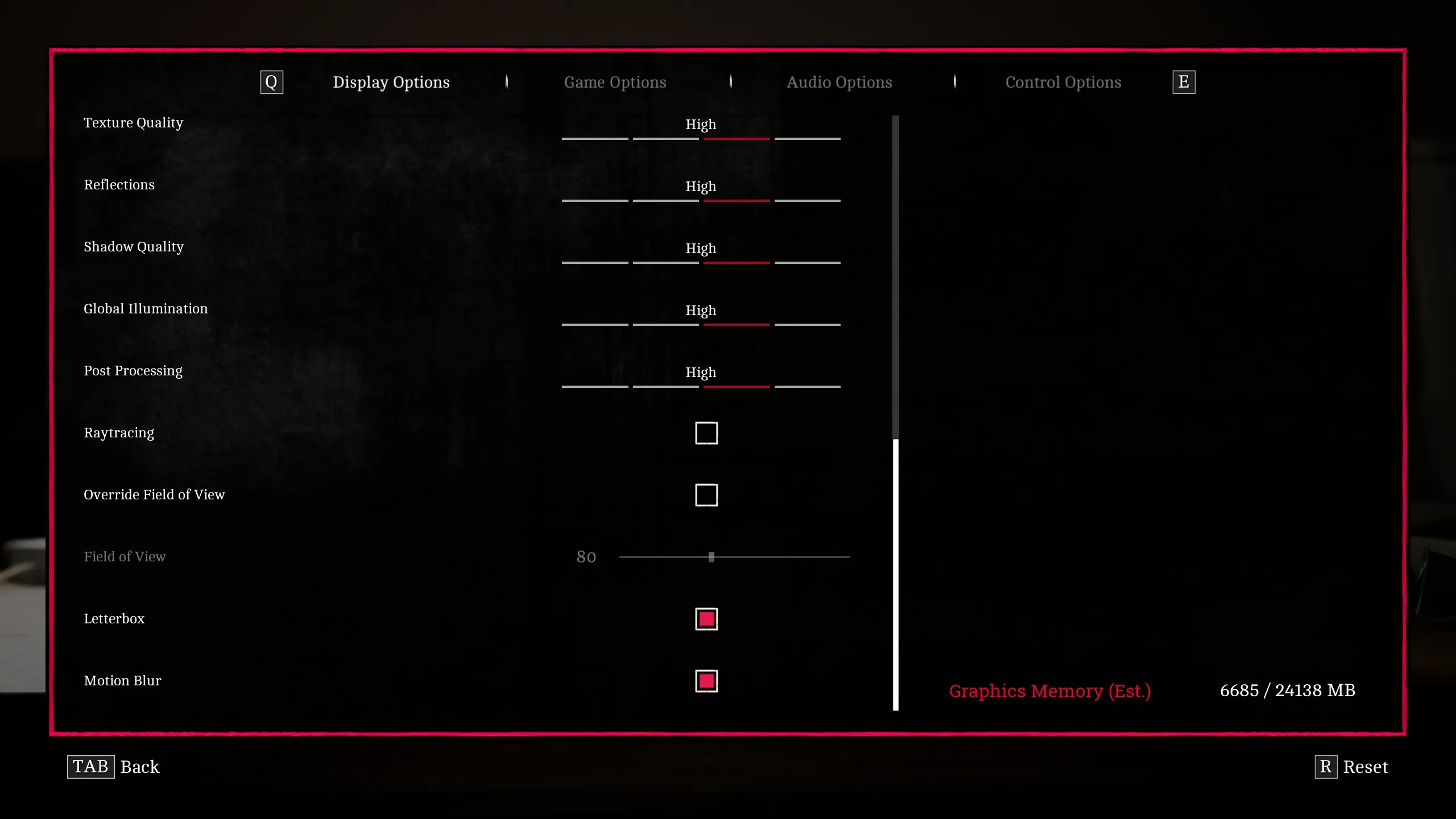
This is the profile recommended by the testing, always compared against a configuration with everything maxed out:
| Setting | Optimized value |
|---|---|
| Fog Quality | Low |
| Texture Quality | Ultra (for GPUs with 8 GB of VRAM or more) |
| Reflections | High |
| Shadow Quality | Medium |
| Global Illumination | High |
| Post-processing | Low |
| Ray Tracing | On |
The reasoning behind each value:
- Fog Quality → Low: it is one of the few settings that actually returns a real GPU benefit while keeping the majority of the fog look that defines the game’s atmosphere.
- Texture Quality → Ultra: at 1440p with native TSR and hardware Lumen, the top quality stayed within roughly 8 GB of VRAM. Lowering it changes very little visually and does not meaningfully reduce memory usage, unless you are suffering VRAM-related stuttering on a low-memory card.
- Reflections → High: going below High gains no meaningful performance while degrading the image; Ultra adds very little.
- Shadow Quality → Medium: the Virtual Shadow Maps already do a good job, and Medium keeps the quality you actually notice in gameplay while recovering GPU headroom.
- Global Illumination → High: lower levels produced no useful gains and Ultra only improves things subtly. Indirect lighting is key to the presentation, so do not drop below High.
- Post-processing → Low: it progressively disables effects, including the film grain and chromatic aberration many players would turn off manually, with a small performance gain and a cleaner image.
- Ray Tracing → On: hardware tracing moves Lumen off the software path and visibly improves reflections at a performance cost measured as unusually low. Turn it off only if you cannot hit your performance target, especially on GPUs with weaker tracing hardware.
The most important reductions are Fog Quality and Shadow Quality. If you still need more performance, the correct order is disable Ray Tracing first and then lower the temporal upscaling, rather than strangling every other option.
3. Consider letterbox mode (optional)
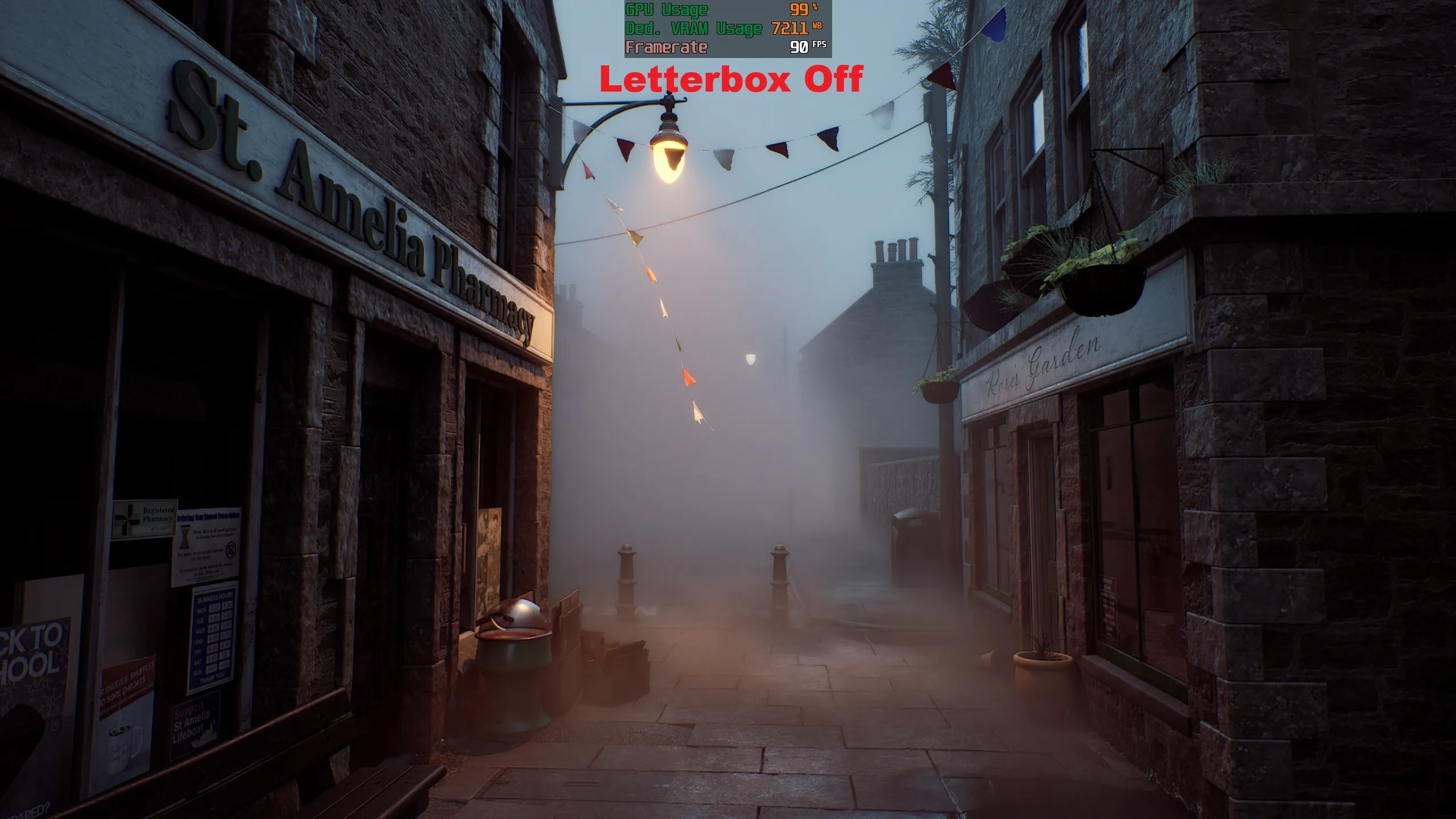
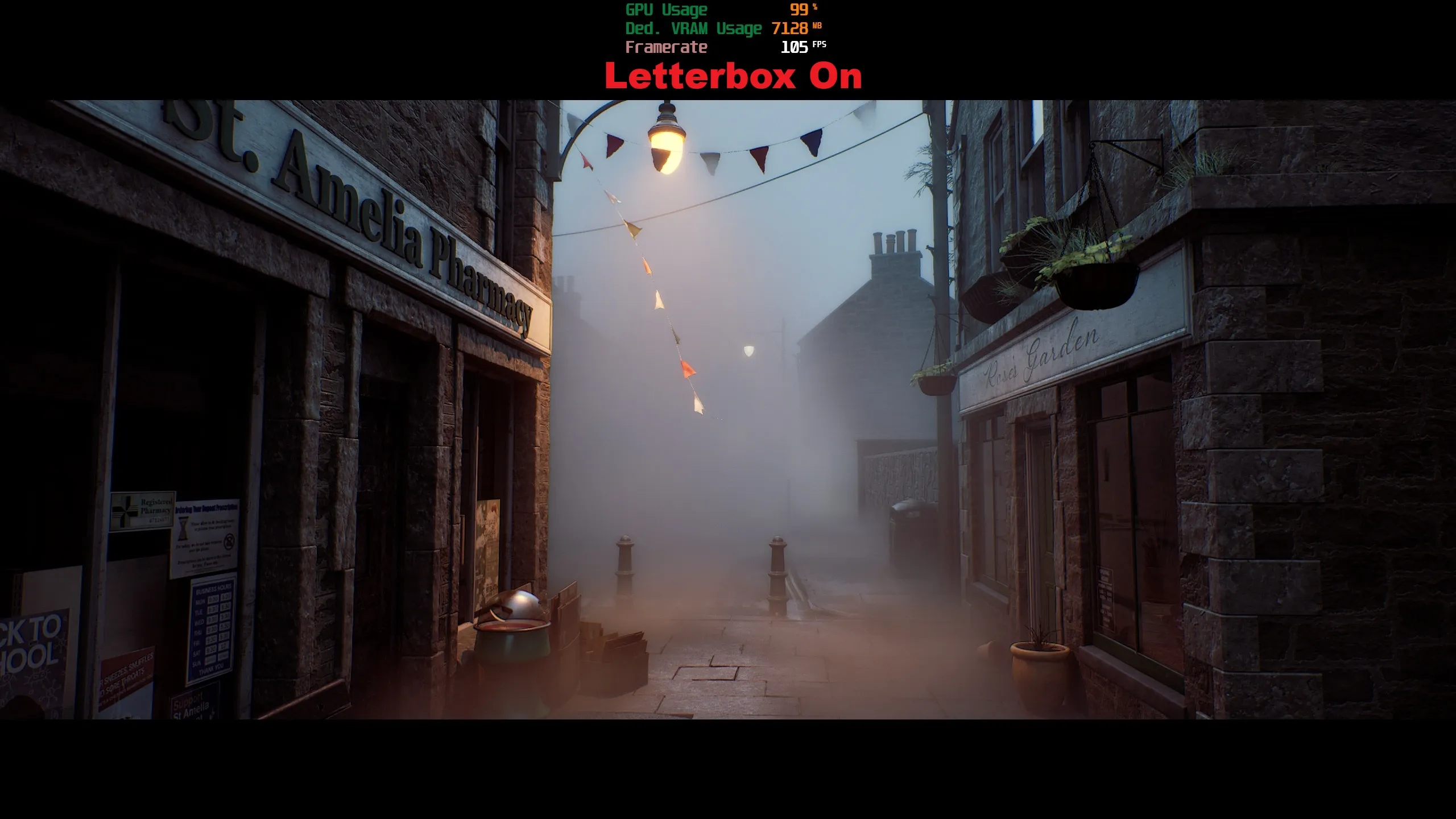
The game offers a cinematic letterbox mode that adds black bars above and below the image. Beyond the aesthetic effect, it reduces the effectively rendered area and can moderately improve GPU performance. In the 2560x1440 test, the game ran at 90 FPS without letterbox and 105 FPS with it enabled, with the GPU at 99% in both cases.
4. Disable NVIDIA Reflex if you notice stuttering
Reflex Low Latency reduces system latency and under normal circumstances is worth enabling, but in SILENT HILL Townfall its implementation behaved badly: on the test system, turning it on introduced constant frame time instability. If the game feels uneven despite a healthy FPS count, Reflex is one of the first options you should try switching off. Leave it disabled until the problem is fixed by a patch.
5. Remove film grain and chromatic aberration with Engine.ini
Setting Post-processing to Low already disables several effects, but anyone wanting finer control can edit Unreal Engine’s configuration. Navigate to:
%LOCALAPPDATA%\Townfall\Saved\Config\WindowsCreate an Engine.ini file (or edit the existing one) and add these lines:
[SystemSettings]
r.FilmGrain=0
r.SceneColorFringeQuality=0
Those UE5 variables disable film grain and chromatic aberration without having to lower
the overall Post-processing setting. Afterwards, mark the Engine.ini file as
read-only so the game cannot overwrite its contents.
Avoid filling Engine.ini with large collections of undocumented “optimizations”:
launch-week mods promise to eliminate compilation and traversal stutters through
streaming, async compute and threading changes, but those claims are far harder to
verify than a simple image tweak. There is no universal Engine.ini command that can
reliably cure an engine-level shader compilation problem.
6. Do not clear the shader cache without reason
Since the game already runs an incomplete initial PSO compilation and keeps building shaders during gameplay, repeatedly clearing the game’s or the driver’s shader cache can make matters worse, forcing previously completed work to be done again.
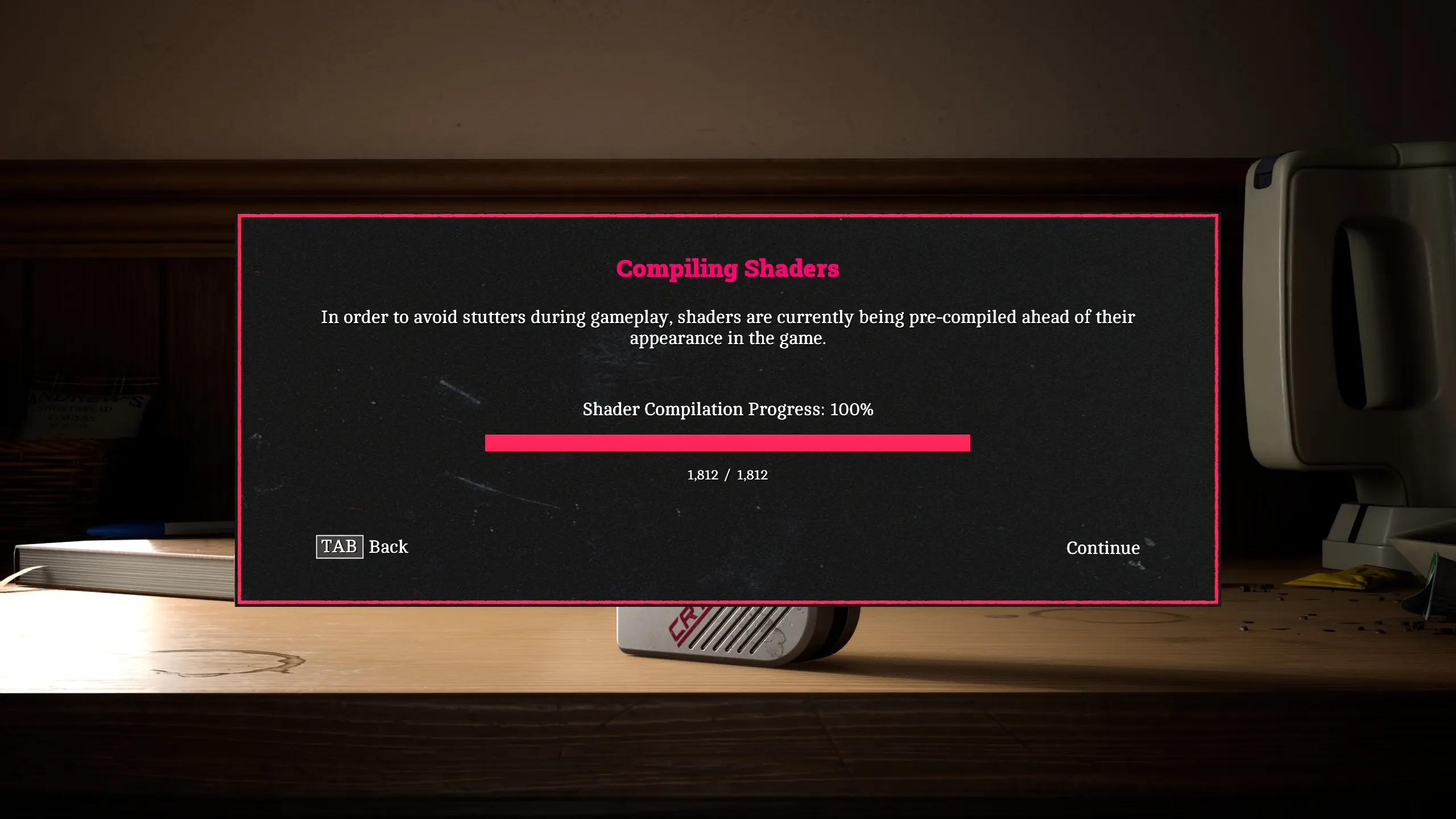
Let the initial compilation finish, avoid clearing caches manually unless you are troubleshooting a specific problem, and expect already visited areas to behave better once their shaders are cached.
7. Use driver-level frame generation as an alternative
The game has no native frame generation, despite being exactly the kind of GPU-heavy UE5 title that would benefit from it most. Testing with OptiScaler managed to enable it, but with enough stability problems to make it inadvisable in its current state. The cleanest route today is driver-level interpolation:
- GeForce RTX 40 and RTX 50: use NVIDIA Smooth Motion, which runs at the driver level and inserts an AI-generated frame between conventionally rendered ones; NVIDIA positions it specifically for games without native DLSS Frame Generation.
- Radeon RX 6000 and newer: use AMD Fluid Motion Frames 2.1, integrated into AMD Software: Adrenalin Edition and compatible with DirectX 11, DirectX 12, Vulkan and OpenGL titles.
Community frame generation mods, such as the FSR FG Enabler on Nexus Mods (built on Unreal/FidelityFX configuration variables, with no DLL injection), should be treated as experimental: user reports are inconsistent and some see no effect at all. They are the last option, not the first.
How to verify that the SILENT HILL Townfall tweak worked
Verification happens in-game with a frame counter. In the tests at 2560x1440, with TSR at native resolution on a Core i7-14700K and GeForce RTX 4090 system, applying the optimized profile against maxed-out settings produced the following:
| Configuration | Average FPS | 1% low | 0.1% low |
|---|---|---|---|
| Max graphics settings | 101 | 70 | 52 |
| Optimized graphics settings | 135 | 82 | 64 |
| Improvement | +34% | +17% | +23% |
The point is not only the average: the lower percentiles improved as well, which is exactly what reads as smoothness. Signs that the tuning worked:
- Average FPS rises steadily compared with your previous baseline.
- Occasional stutters are less frequent in areas you have already visited.
- VRAM usage stays around 8 GB with Texture Quality on Ultra at 1440p.
- The image looks cleaner (no grain, no aberration) without the scene looking clearly worse.
If the game still feels uneven at a good FPS count, go back to step 4 and disable Reflex.
Warnings and limitations
- Incomplete shader compilation: the game runs an initial PSO pass with a progress screen, but it does not compile everything; the rest is compiled asynchronously during gameplay, with CPU spikes and stutters on top of Unreal Engine 5’s usual traversal hitches. In a slow-paced game, this breaks immersion.
- Limited scalability: dropping everything to Low does not produce the dramatic improvement one might expect, nor does maxing everything out bring an equivalent visual transformation. Several options barely change the image or the performance.
- No presets and no built-in metrics: there are no predefined graphics profiles and no in-game FPS counter; use your driver’s tool or an external one.
- Automatic HDR: there is no HDR toggle in game; if HDR is active in Windows, the game enables it on its own, with a standard result for a UE5 title.
- No XeSS and no native frame generation: Intel users will have to rely on TSR, and anyone looking for FG will have to go through the driver or mods.
- Possible control bug: a bug was found in which remapped keys sometimes fail to apply.
All in all, SILENT HILL Townfall is a visually attractive but technically uneven PC release. With this settings profile, average performance improved by 34%, with 17% and 23% gains in the 1% and 0.1% lows and only minor visual compromises. What the game needs from the studio is a patch addressing PSO compilation, frame time consistency and native frame generation.